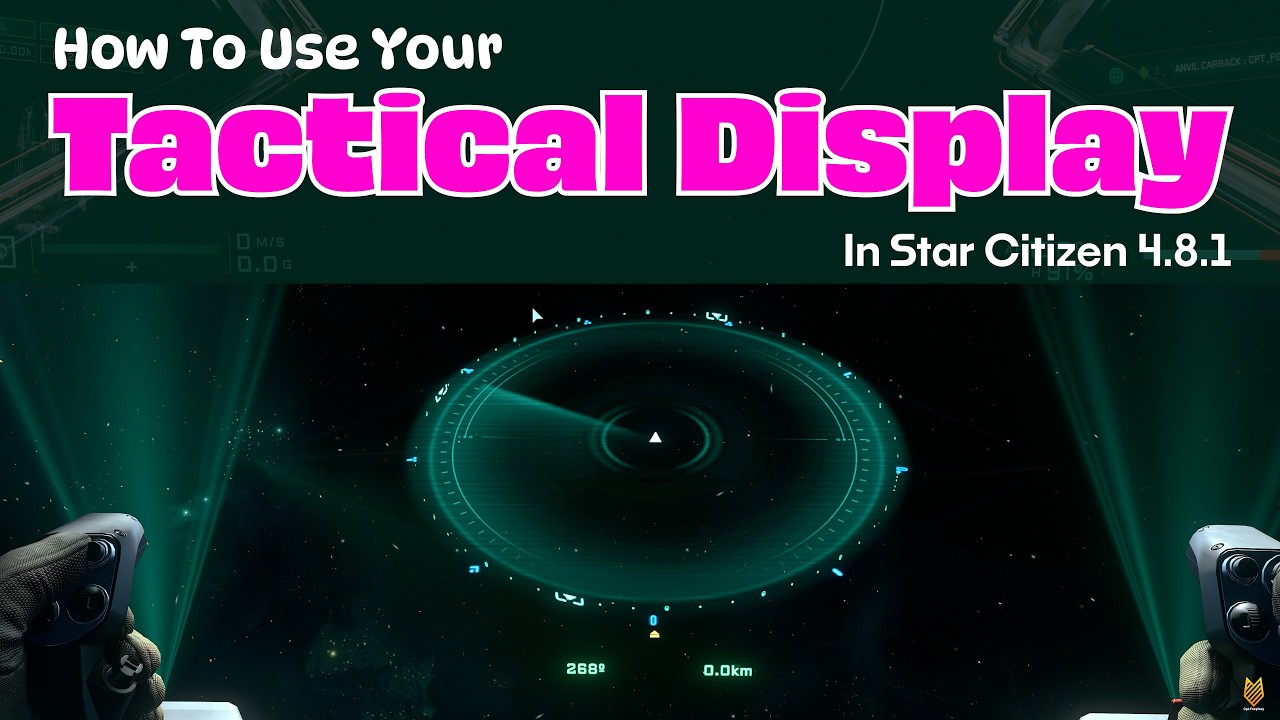
In this video guide, the creator explains how to use the tactical display in Star Citizen, emphasizing that it is distinct from the ship’s physical radar system. The tactical display can sometimes disappear after a quantum jump, but a simple fix is to turn the ship’s systems off and then back on to restore it. The tutorial uses the Carrack ship as an example, highlighting its multiple tactical displays, though some, like the upper bridge globe, are non-interactive. The primary focus is on the pilot seat’s tactical display, which has been simplified compared to earlier versions in previous game updates.
The tactical display provides directional information, but unlike traditional radars, it only shows meaningful compass directions when near a planet, as space lacks fixed directional references. On planets, the display shows degrees corresponding to cardinal points (e.g., 0° for north, 180° for south), which helps orient the player relative to planetary landmarks such as OM1 (north) and OM2 (south). The display also allows zooming in and out of the scan radius (up to 60 kilometers) using the F key and mouse wheel, which is consistent across all ships. Zooming in reveals more detailed ship markers and allows targeting by clicking on them.
The tactical display distinguishes between friendly, neutral, and hostile ships by color coding: green for party members, white for neutrals, and orange for enemies. It also shows the relative position of ships in three dimensions using solid and dotted circles to indicate whether targets are above or below the player’s horizontal plane. The display can show detailed silhouettes of ships and even features like landing gear status. However, some features from older versions, like locking the zoom level, have been removed. During combat, the display can become locked at a certain zoom level, which may be a bug.
In addition to ships, the tactical display also shows scanned resources once they are identified through pinging. Unknown resources won’t appear until scanned properly. The display does not show ground troops, only ships and resources. It requires a player to be in the pilot seat to function properly, as it will not update or show targets if no one is piloting the ship. Larger tactical displays on the ship also show targets but may not sync with the pilot’s display.
Finally, the video offers a practical tip for navigating jump gates: by zooming out on the tactical display, players can spot a red bubble indicating the direction of the jump tunnel, which can be hard to find otherwise. This helps pilots maneuver their ships toward the jump point without needing to switch to third-person view. The guide concludes by encouraging viewers to use the tactical display as a valuable tool for situational awareness in Star Citizen.